How to Export a Clean PDF Timesheet for Payroll & Invoices
How to Export a Clean PDF Timesheet for Payroll & Invoices
A messy timesheet gets ignored. A clean one gets paid. Whether you are handing hours to an employer, invoicing a client or filing records for tax season, the format of your timesheet is part of the deliverable.
What a professional timesheet must show
Anyone reading your timesheet needs to answer three questions in seconds:
- Who and when? — Name/company, and the exact period covered
- What was worked? — Day-by-day rows with start, end and duration
- What is owed? — Total hours, and where applicable, gross pay broken into regular and overtime
Optional but impressive: a notes column, and separate totals per job or employee.
PDF vs CSV: when to use which
| Format | Best for | Why |
|---|---|---|
| Clients, employers, archives | Fixed layout — nothing shifts when it opens on another machine | |
| CSV | Payroll systems, Excel, accountants | Machine-readable; opens cleanly in Excel, Numbers or Google Sheets |
In practice: send the PDF when a human will read it, send the CSV when software will process it. Many people export both.
What the export must not contain
- Empty weeks that create confusion (exclude them with a date filter)
- Rows for the wrong employee if you manage a team
- Raw internal flags or test data
- Unlabeled currencies or mixed time formats
One rule of thumb: if you would not want your accountant to see it, filter it out before exporting.
Exporting cleanly with Hours Tracker
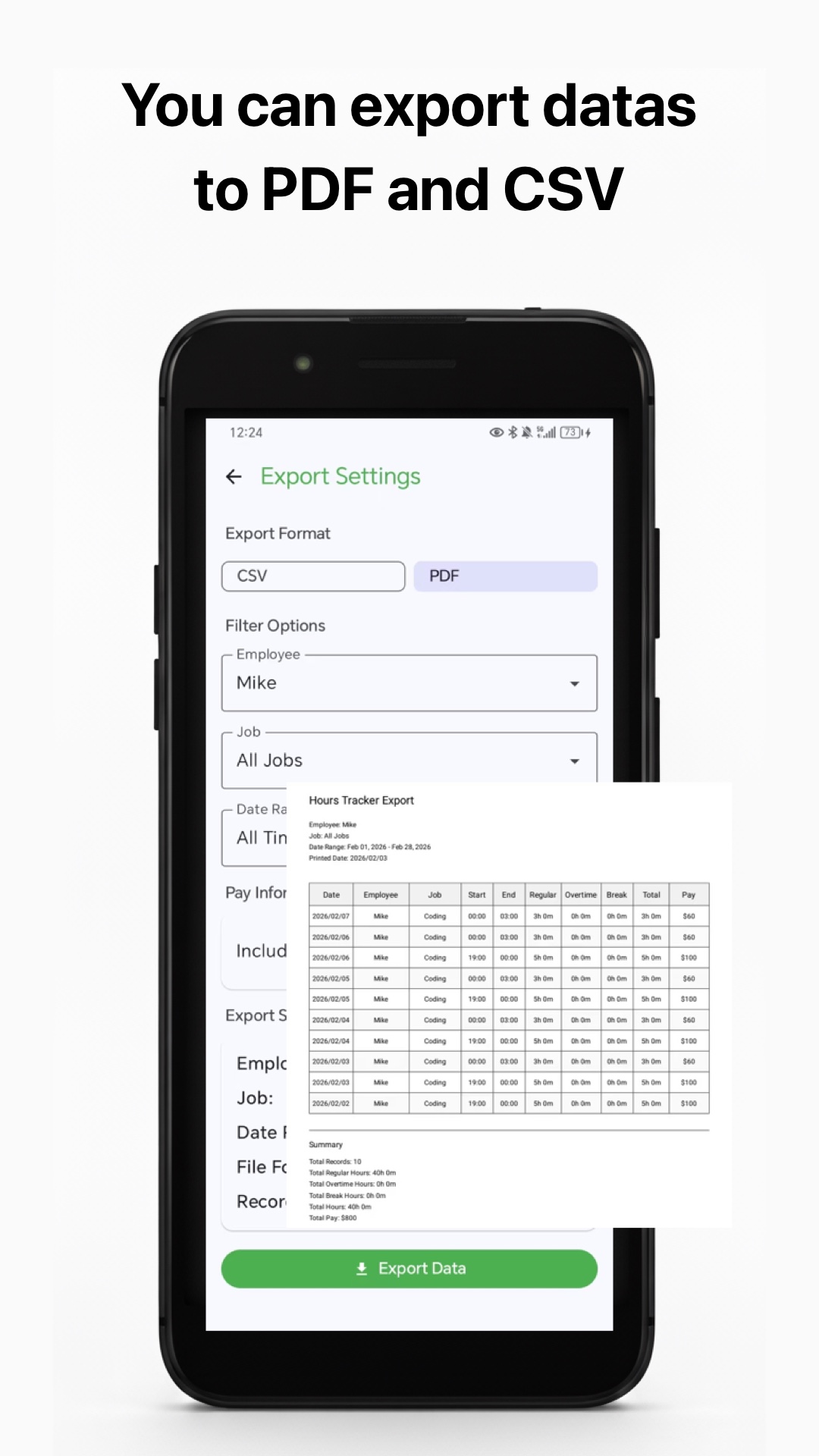
Hours Tracker: Work Log & Pay turns hours into a client-ready document in three taps:
- Set the range — pick the exact start and end dates for the report. Export a single week for payroll hand-off, or a whole month for a client invoice.
- Filter by employee or job — if you track multiple jobs or a small team, choose one job/employee so the PDF contains only the relevant rows (plus a clear label of who it belongs to).
- Choose PDF or CSV — the PDF export includes a summary block: total hours, overtime hours, gross pay and (when enabled) net pay after your configured tax.
Because the app calculates regular hours, breaks, overtime and pay as you go, the export's totals match the in-app pay period tables — no last-minute spreadsheet reconciliation.
Formatting tips for your PDF timesheets
- Add the period to the filename — e.g.
timesheet-worklog-2026-06.pdf. Files named like this survive payroll inboxes. - Keep one job per export when rates differ — mixing two jobs at different hourly rates in one PDF invites questions.
- Include overtime as its own line if your contract pays it separately; a summary that shows regular + OT + gross is much harder to challenge.
- Note unusual shifts — a night shift crossing midnight can look wrong to someone scanning quickly; a short note in the day row preempts the question.
Independent contractors: the invoice-ready timesheet
For contractors billing hourly, attach the timesheet to your invoice. A clean loop:
- Track every shift with clock-in/out (or manual entries for older work)
- Filter the month, per client/job
- Export the PDF summary
- Attach it to the invoice line item
Clients approve invoices faster when the hours are self-evident — and you keep an auditable PDF copy for tax season.
Remember: exports are records of hours worked. If you also need them as evidence for wage claims or disputes, keep the CSV source file too — it is easier to audit programmatically than a PDF.
Get export-ready timesheets from day one
Hours Tracker records hours correctly up front (night shifts, breaks, overtime), so every export is payroll-ready without reformatting. Free to download, time logs private by default.
Download: Hours Tracker on the App Store · Google Play